> ## Documentation Index
> Fetch the complete documentation index at: https://docs.darkmoonhollow.xyz/llms.txt
> Use this file to discover all available pages before exploring further.
# How to Update via CurseForge
> This guide explains how to update an existing Minecraft modpack using the CurseForge desktop application. It covers unlocking the profile, updating mods, exporting a new version, and testing before release.
## Step 1: Open CurseForge
While opening CurseForge hover over the modpack you wish to update
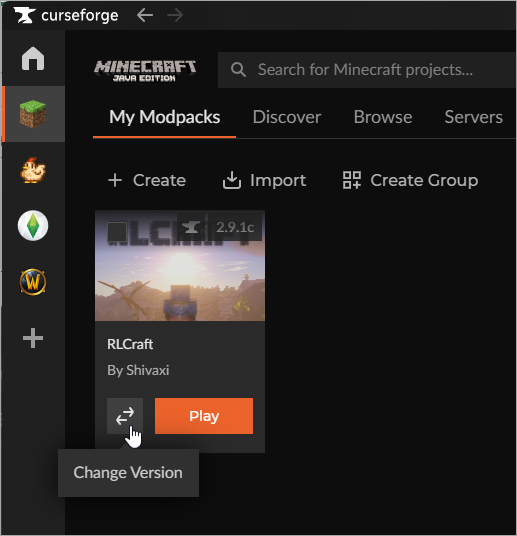 ## Step 2: Update to latest Version
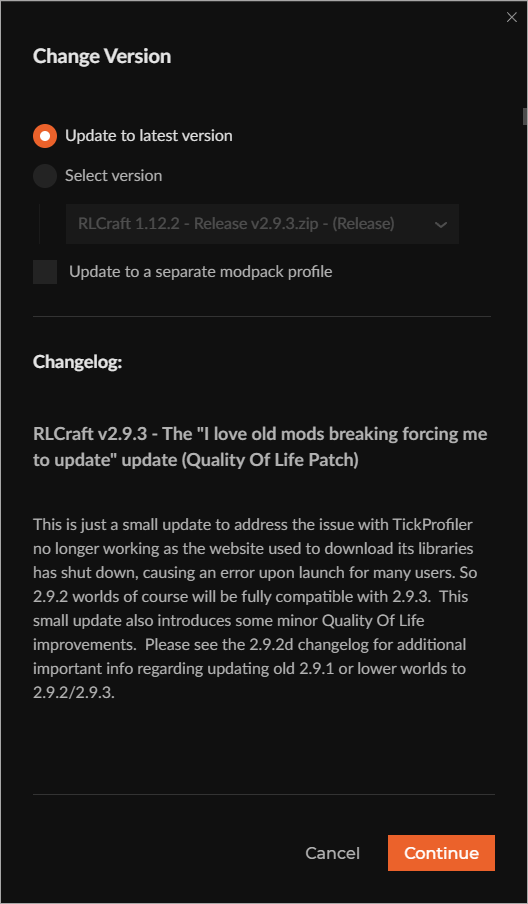
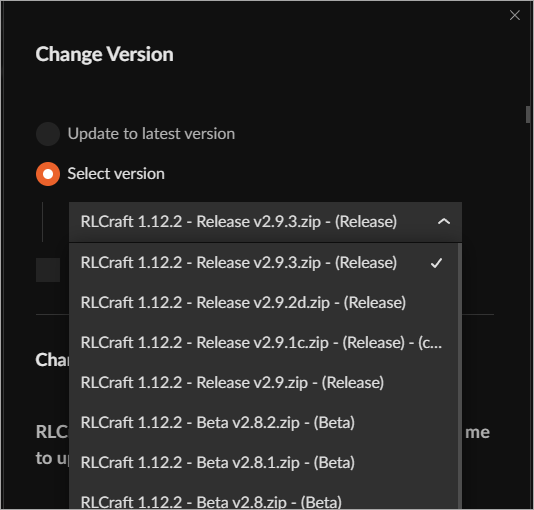
Select either **Update to the latest version** or choose a specific version from the dropdown list:
## Step 2: Update to latest Version
Select either **Update to the latest version** or choose a specific version from the dropdown list:
 # **Additional Information**
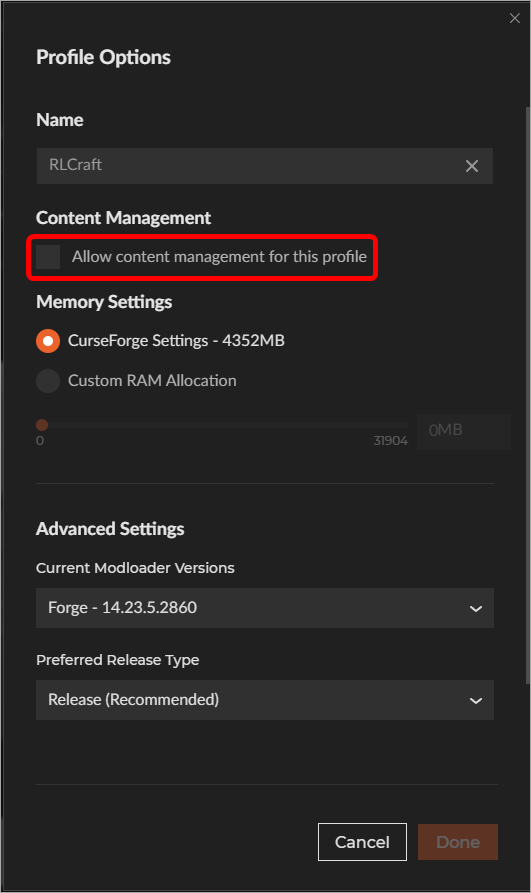
If you enabled Allow content management for this profile in the Profile Options, you’ll need to disable it before the Change Version option becomes available:
# **Additional Information**
If you enabled Allow content management for this profile in the Profile Options, you’ll need to disable it before the Change Version option becomes available:
 * Any custom changes you made to the modpack’s content will be overwritten when changing versions, unless you select **Update to new Profile**.