> ## Documentation Index
> Fetch the complete documentation index at: https://docs.darkmoonhollow.xyz/llms.txt
> Use this file to discover all available pages before exploring further.
# How to Create an Account & Check Your Spam Folder
> This guide walks you through creating an account on our site(s) and explains what to do if you don’t see the verification email right away. The process only takes a few minutes.
## Part 1: Creating an Account
### Step 1: Visit the Website
Open your browser and go to our official website.
This can be one of the following websites
* [Kai's Place](https://kaikingstreams.xyz)
* [Darkmoon Hollow](https://darkmoonhollow.xyz)
* [Darkmoon Chronicles](https://drakmoonchronicles.com/)
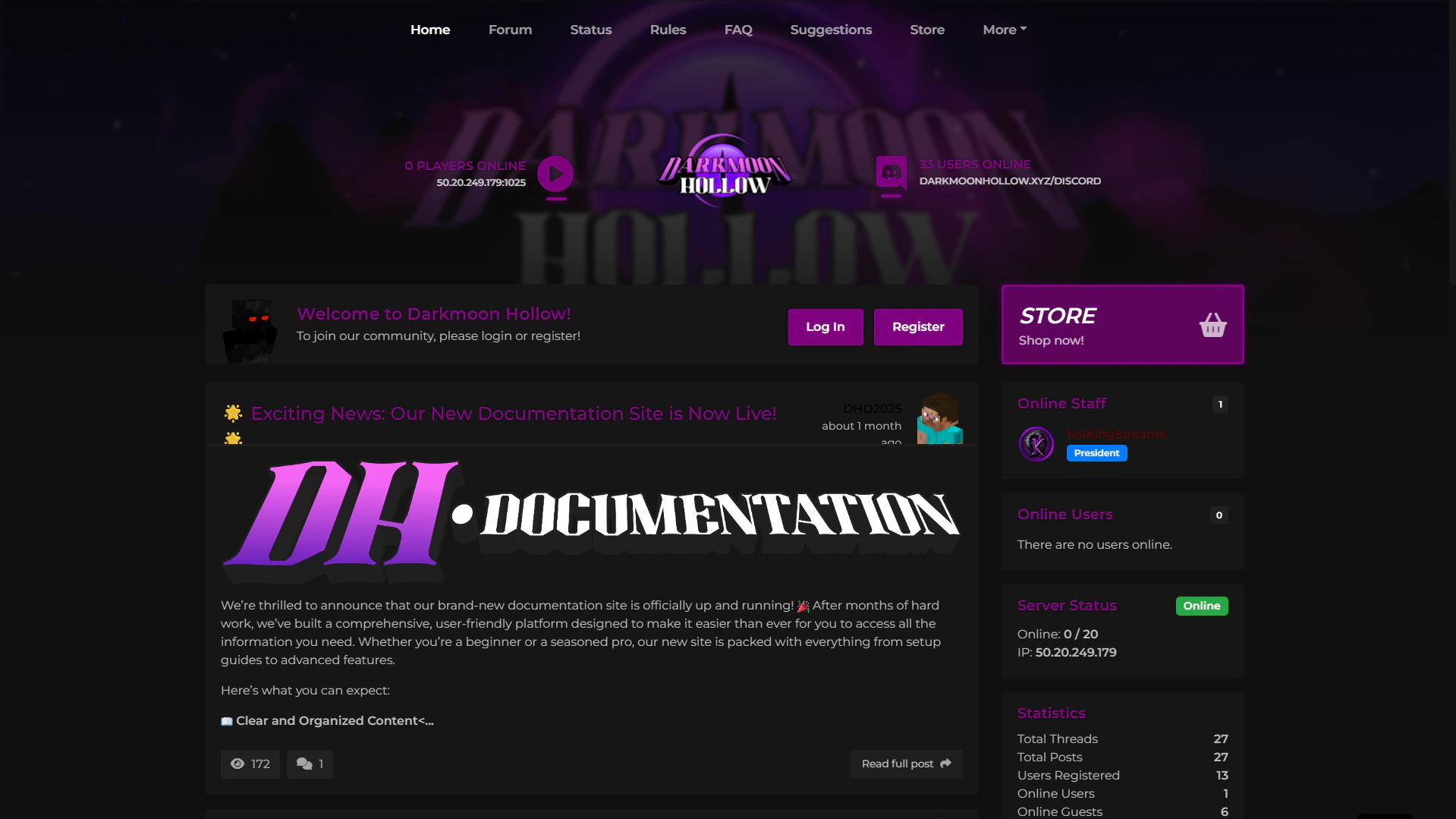
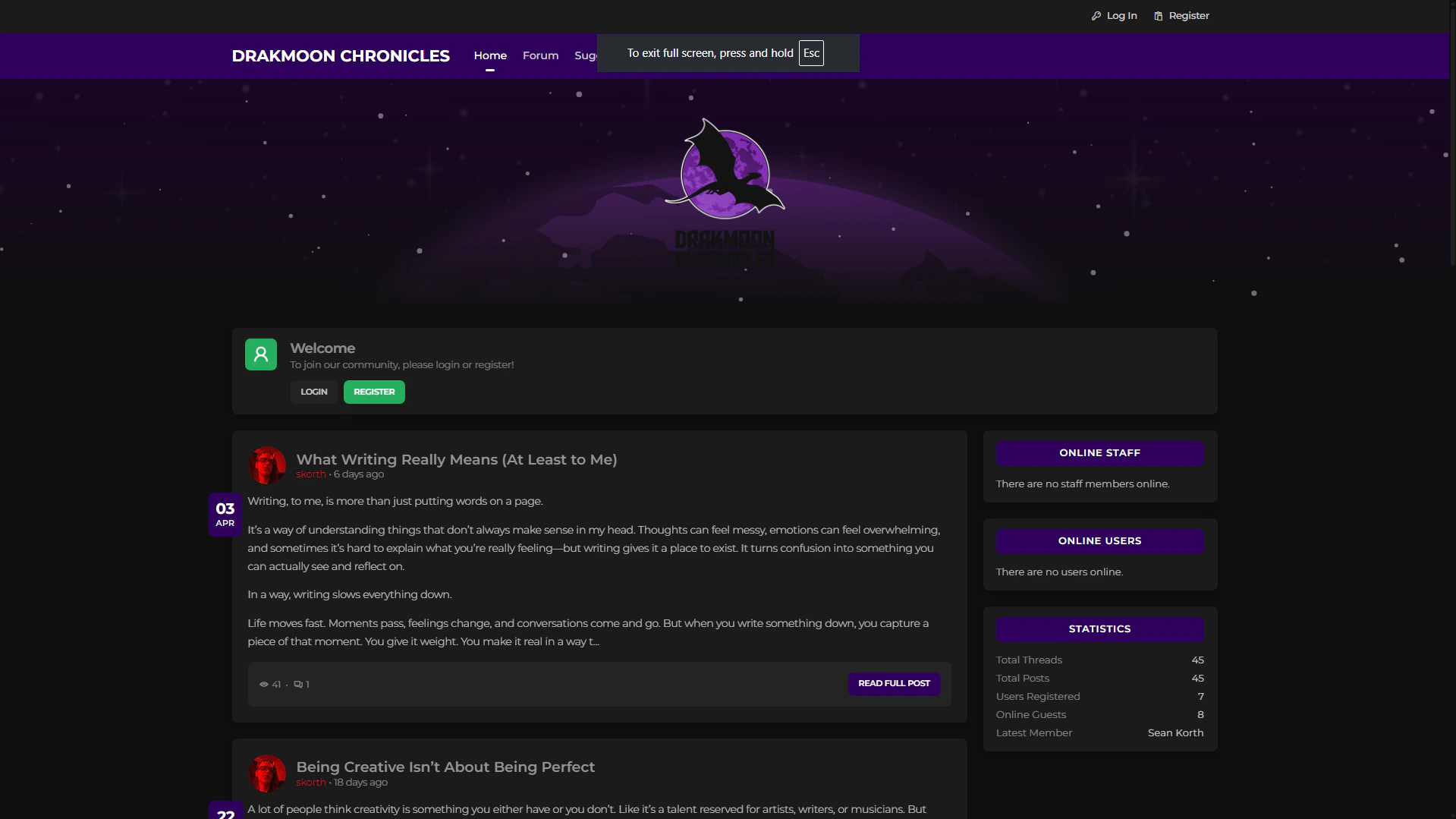
### Step 2: Click “Sign Up” or “Create Account”
Locate the **Sign Up**, **Register**, or **Create Account** button.
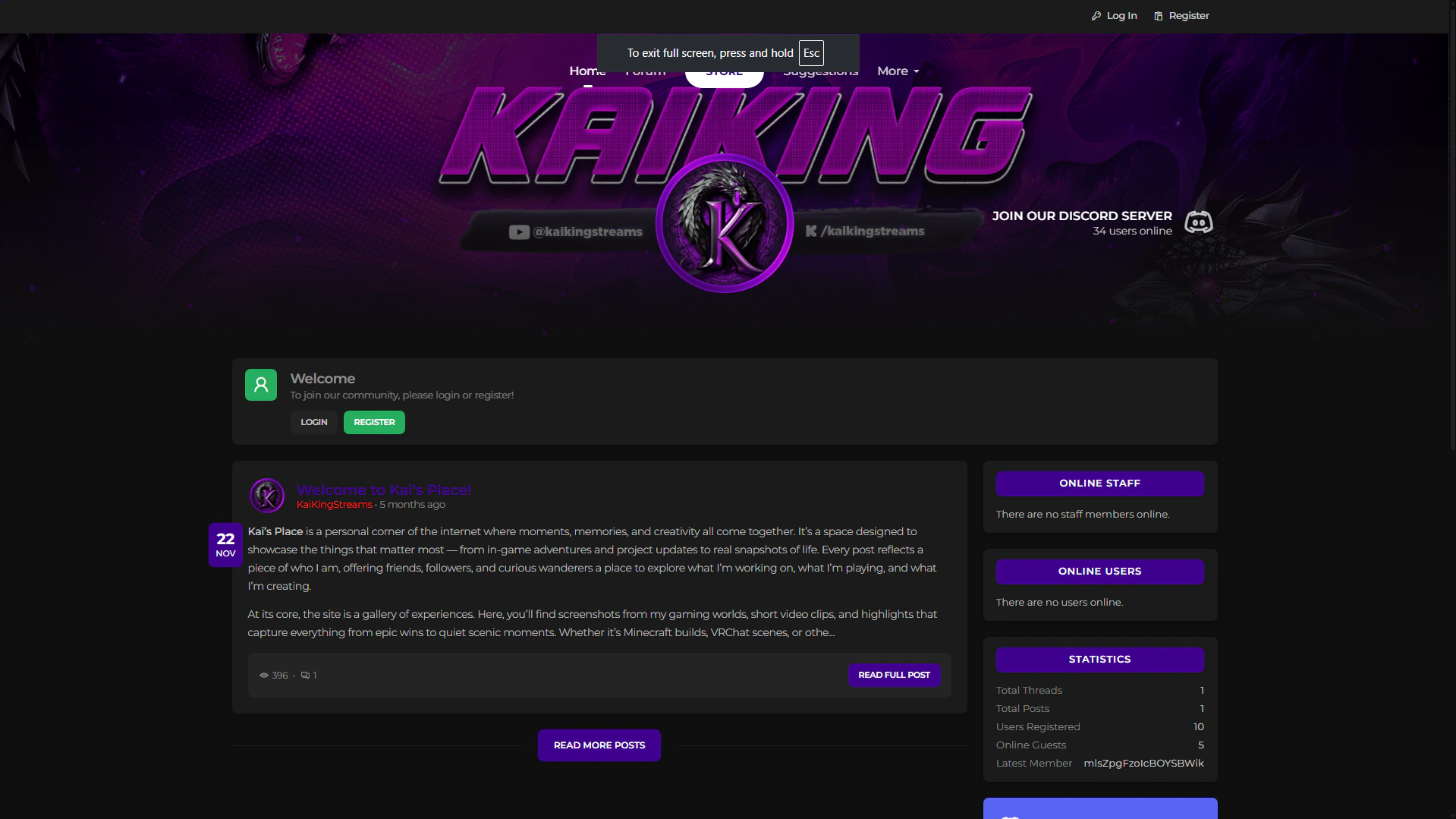 \
This is usually found in the middle of the home page.
### Step 3: Fill Out the Registration Form
Enter the required information:
* Nickname
* Username
* Email address (make sure it’s spelled correctly)
* Password (follow any listed requirements)
Once finished, submit the form.
### Step 4: Check for the Verification Email
After submitting the form, you should receive a verification email within a few minutes.\
This email is required to activate your account.
***
## Part 2: Checking Your Spam or Junk Folder
Sometimes verification emails are filtered automatically. If you don’t see the email in your inbox, follow these steps.
### Step 1: Open Your Email Provider
Log in to the email account you used during registration.
### Step 2: Go to the Spam or Junk Folder
Look for folders labeled:
* **Spam**
* **Junk**
* **Promotions** (for Gmail users)
### Step 3: Find the Verification Email
Search for an email from our site.\
If found, open it.
### Step 4: Mark the Email as “Not Spam”
This helps ensure future emails arrive in your inbox.
* Click **Not Spam** or **Move to Inbox**
### Step 5: Click the Verification Link
Inside the email, click the verification or activation link to finish setting up your account.
***
## Part 3: Still Not Receiving the Email?
If you still don’t see the email:
* Double-check that you entered the correct email address
* Wait 5–10 minutes and refresh your inbox
* Try resending the verification email if the option is available
* Contact support if the issue continues
***
## Account Successfully Created
Once verified, your account is fully active and ready to use.
Welcome aboard!
\
This is usually found in the middle of the home page.
### Step 3: Fill Out the Registration Form
Enter the required information:
* Nickname
* Username
* Email address (make sure it’s spelled correctly)
* Password (follow any listed requirements)
Once finished, submit the form.
### Step 4: Check for the Verification Email
After submitting the form, you should receive a verification email within a few minutes.\
This email is required to activate your account.
***
## Part 2: Checking Your Spam or Junk Folder
Sometimes verification emails are filtered automatically. If you don’t see the email in your inbox, follow these steps.
### Step 1: Open Your Email Provider
Log in to the email account you used during registration.
### Step 2: Go to the Spam or Junk Folder
Look for folders labeled:
* **Spam**
* **Junk**
* **Promotions** (for Gmail users)
### Step 3: Find the Verification Email
Search for an email from our site.\
If found, open it.
### Step 4: Mark the Email as “Not Spam”
This helps ensure future emails arrive in your inbox.
* Click **Not Spam** or **Move to Inbox**
### Step 5: Click the Verification Link
Inside the email, click the verification or activation link to finish setting up your account.
***
## Part 3: Still Not Receiving the Email?
If you still don’t see the email:
* Double-check that you entered the correct email address
* Wait 5–10 minutes and refresh your inbox
* Try resending the verification email if the option is available
* Contact support if the issue continues
***
## Account Successfully Created
Once verified, your account is fully active and ready to use.
Welcome aboard!