
How to Create an Account & Check Your Spam Folder
This guide walks you through creating an account on our site(s) and explains what to do if you don’t see the verification email right away. The process only takes a few minutes.
Part 1: Creating an Account
Step 1: Visit the Website
Open your browser and go to our official website.
This can be one of the following websites
Step 2: Click “Sign Up” or “Create Account”
Locate the Sign Up, Register, or Create Account button.
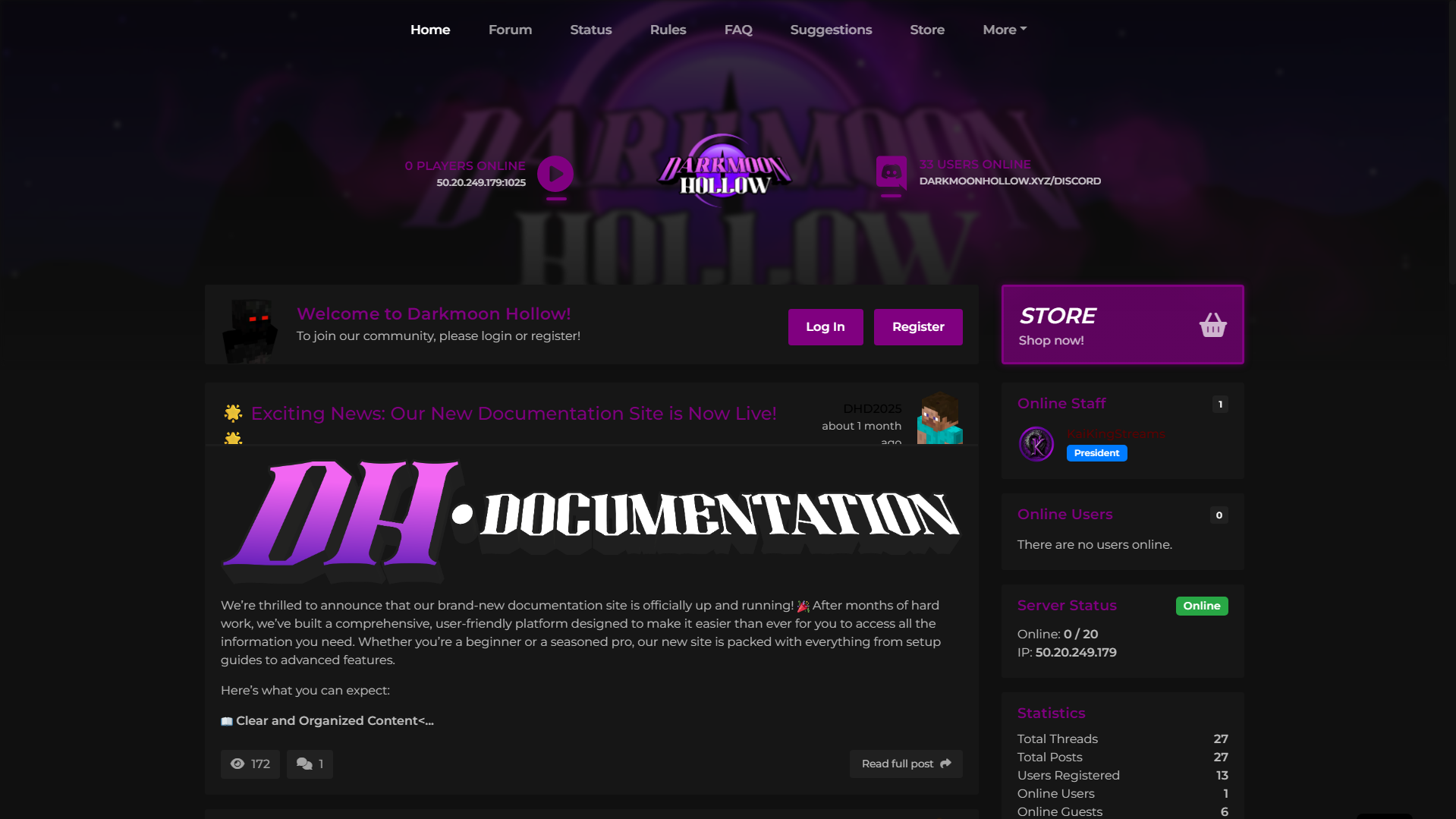
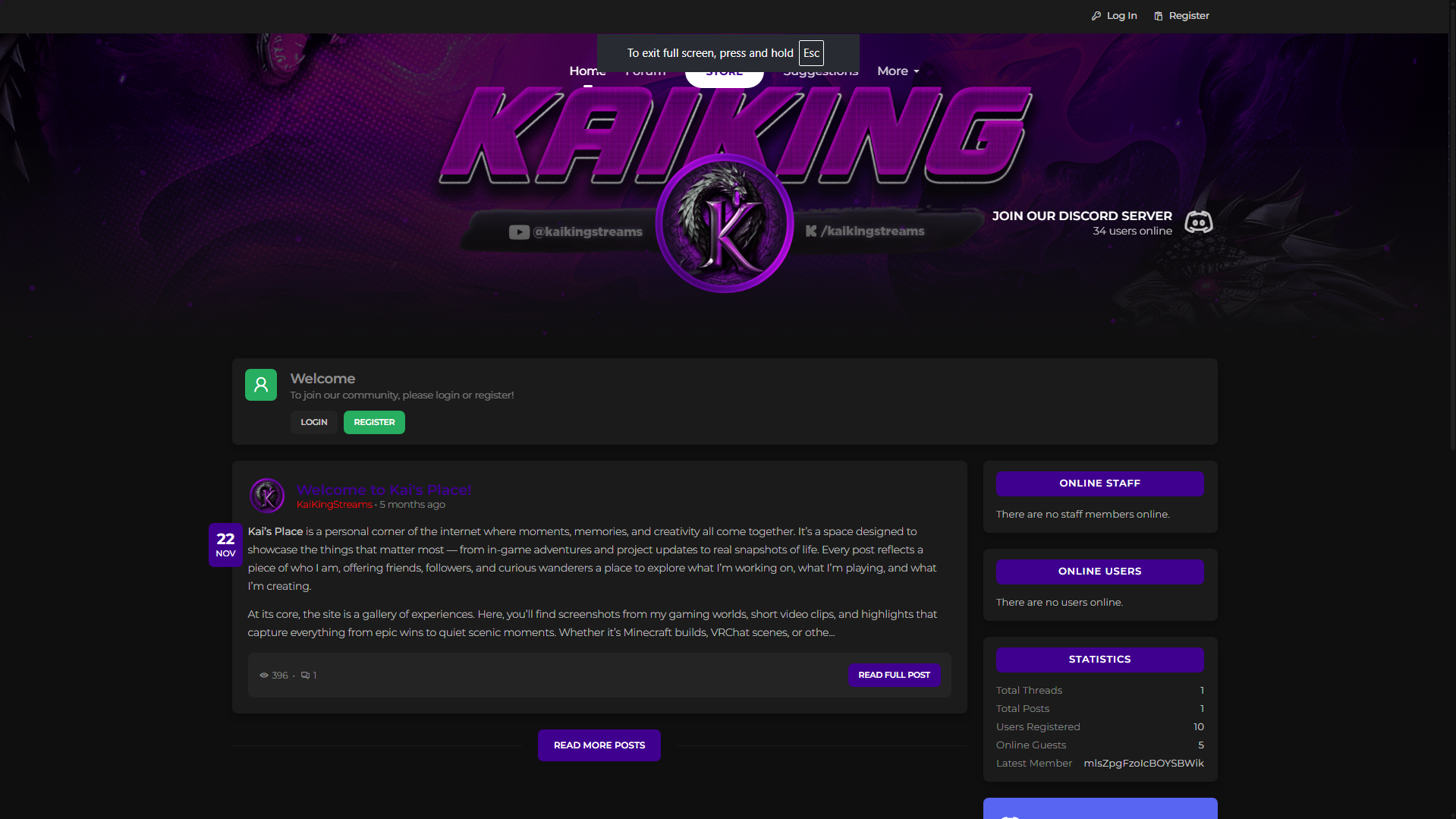
This is usually found in the middle of the home page.
Step 3: Fill Out the Registration Form
Enter the required information:
- Nickname
- Username
- Email address (make sure it’s spelled correctly)
- Password (follow any listed requirements)
Once finished, submit the form.
Step 4: Check for the Verification Email
After submitting the form, you should receive a verification email within a few minutes.\
This email is required to activate your account.
Part 2: Checking Your Spam or Junk Folder
Sometimes verification emails are filtered automatically. If you don’t see the email in your inbox, follow these steps.
Step 1: Open Your Email Provider
Log in to the email account you used during registration.
Step 2: Go to the Spam or Junk Folder
Look for folders labeled:
- Spam
- Junk
- Promotions (for Gmail users)
Step 3: Find the Verification Email
Search for an email from our site.\
If found, open it.
Step 4: Mark the Email as “Not Spam”
This helps ensure future emails arrive in your inbox.
- Click Not Spam or Move to Inbox
Step 5: Click the Verification Link
Inside the email, click the verification or activation link to finish setting up your account.
Part 3: Still Not Receiving the Email?
If you still don’t see the email:
- Double-check that you entered the correct email address
- Wait 5–10 minutes and refresh your inbox
- Try resending the verification email if the option is available
- Contact support if the issue continues
Account Successfully Created
Once verified, your account is fully active and ready to use.
Welcome aboard!
Comments